User Manual • Edition 1.6

Your Journey,
Structured.

From the first login on your dashboard to mastering the fine details of the story editor.

Visual Overview

Watch the Magic in Action

Prefer a visual tour? Watch our 2-minute masterclass on how to create your first MagicBook. For a deep dive into specific features, follow the Text-Picture Guide below.

Tutorial Coming Soon

We are currently recording the perfect walkthrough to show you the magic of Ora MagicBook.

Video Guide

Perfect for a quick 2-minute overview of the entire process from photo upload to final PDF.

Text & Picture Guide

Best for detailed troubleshooting and learning advanced editor tools like layout and typography.

The Coin Economy

Transparent Pricing Engine

Understanding how Coins power your creative journey.

Starting your adventure

To start creating, everyone uses a simple system called **Coins**. Every new user gets a gift of **2 FREE Coins** just for signing up!

  • **The Story Text is Free:** It costs $0 to write your story. You can play with the words as much as you like!
  • **Use Coins for Pictures:** You use 1 Coin when you decide to turn a page into a beautiful picture.
  • **No Monthly Bills:** You don't have to pay every month. You just buy coins when you want to make a new book.
  • **Yours Forever:** Your coins never expire, and you can keep your finished books forever.

See Coin Packages ➔

Getting Started

Start Your Adventure

Enter the Ora MagicBook ecosystem and claim your starting gift.

Get Your Free Coins

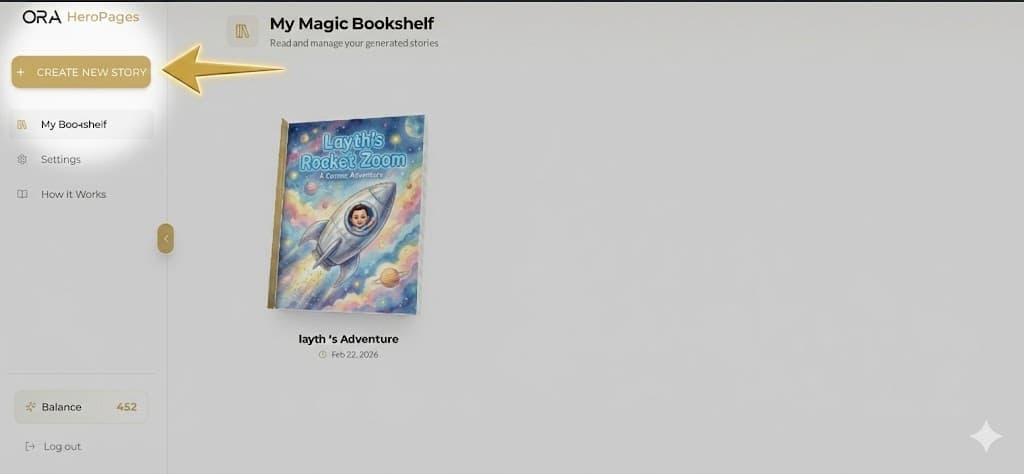
Ready to make your story? **Sign up and get 2 Free Coins** to start your first adventure! It's fast, easy, and free to join.

Once you sign up, you'll see the **"Create New Story"** button in your dashboard (shown in the picture). This button takes you straight to the story wizard!

You can also click **"Try it Now"** below to jump into the wizard as a guest and see the magic for yourself.
Get Your Free Coins
Create Your Story

The Creative Wizard

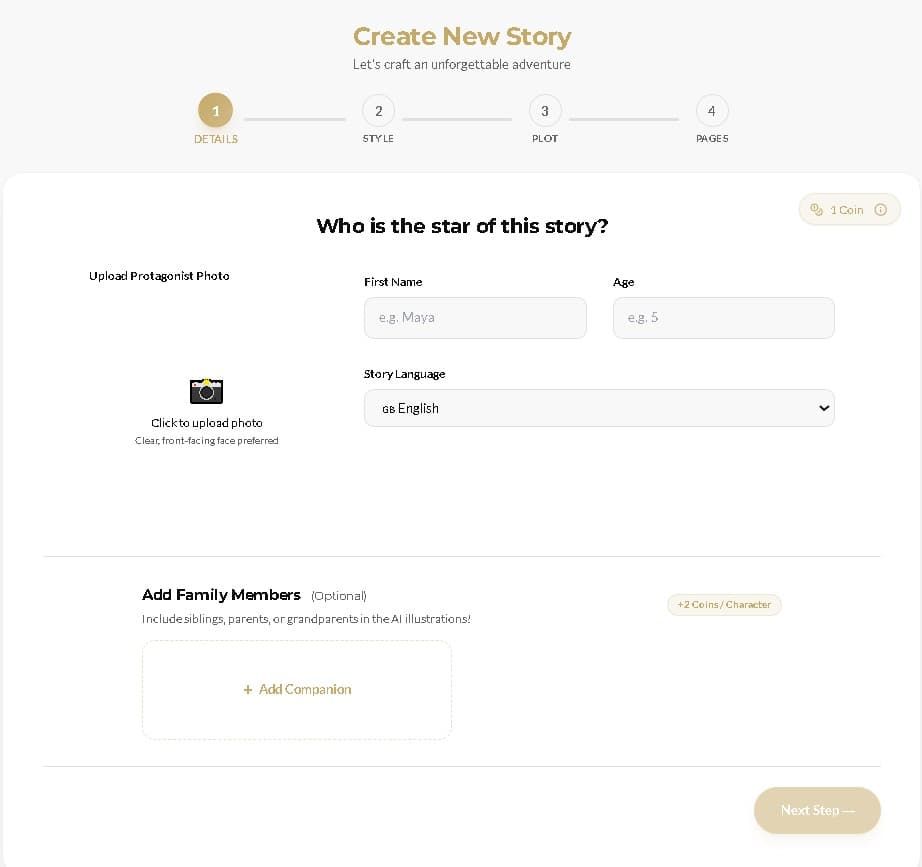
A magical 4-step process to define your story.
What is the Wizard?

The Ora MagicBook Wizard is an intuitive interface designed to gather the creative DNA of your story. By answering a few simple questions, you give our AI the context it needs to build a consistent world.
What is the Wizard?

Step 1: Details

Naming the stars and anchoring their likeness.

Characters & Identity

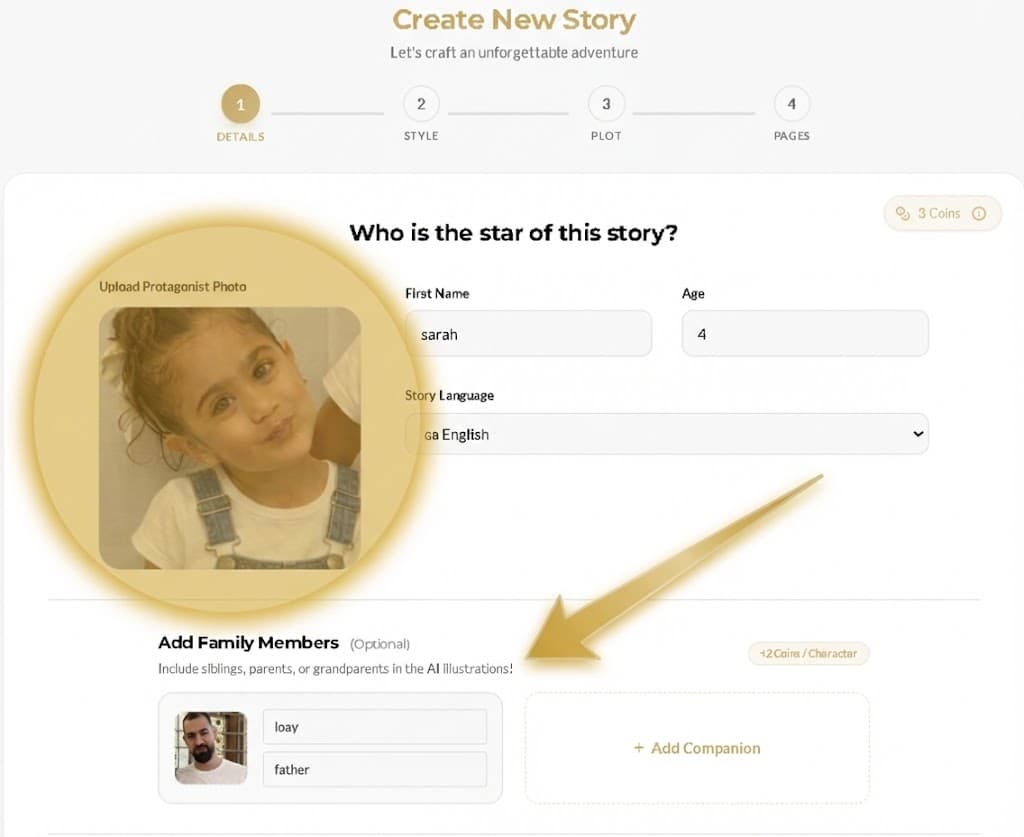
This is where you anchor the "DNA" of your story. Upload a clear photo for the Primary Hero to create a Likeness Blueprint, then add Companion Characters (siblings, parents, or pets) to join the adventure.

Set the Identity Labels (Names, Ages, and Language) so the Ora MagicBook Engine can tailor the vocabulary and relationship dynamics perfectly.
Characters & Identity

Step 2: Style

Choosing the visual language of the book.
Artistic Soul

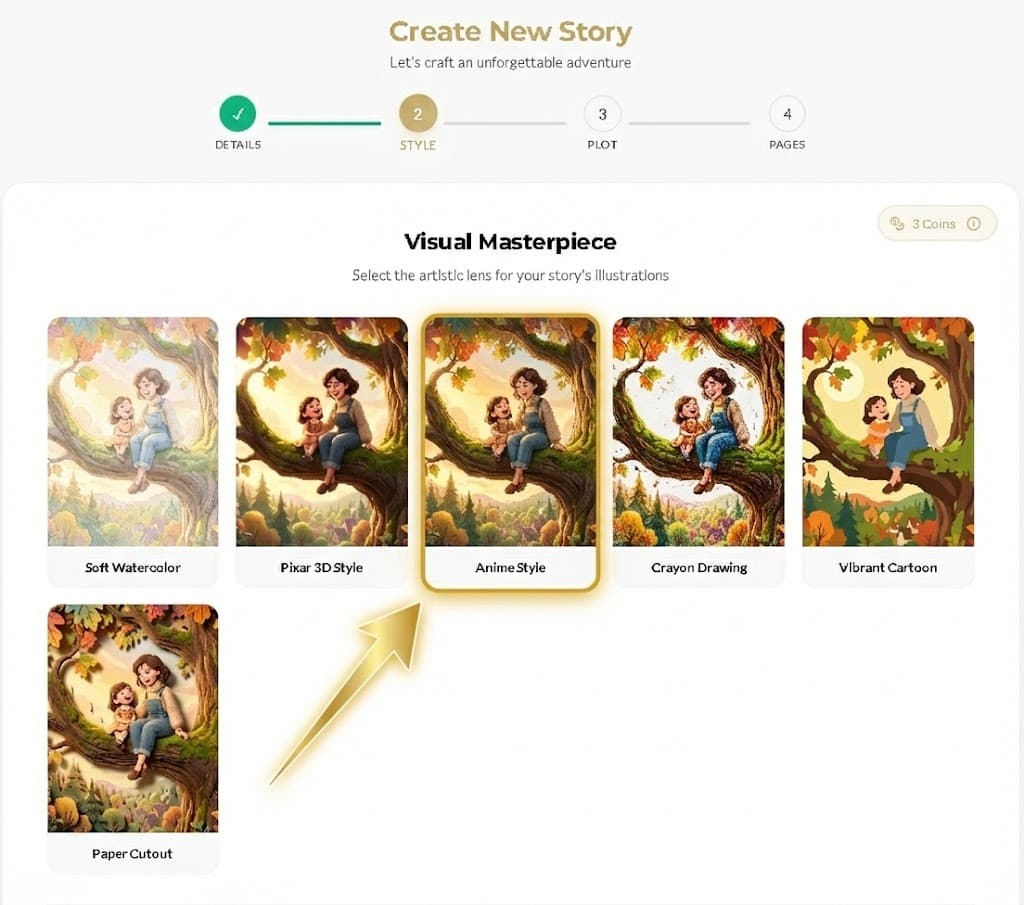
Choose from professional styles like Watercolor, 3D Render, or Anime. This selection dictates the "look" of every AI illustration in your story.
Artistic Soul

Step 3: Plot

Setting the scene for adventure.

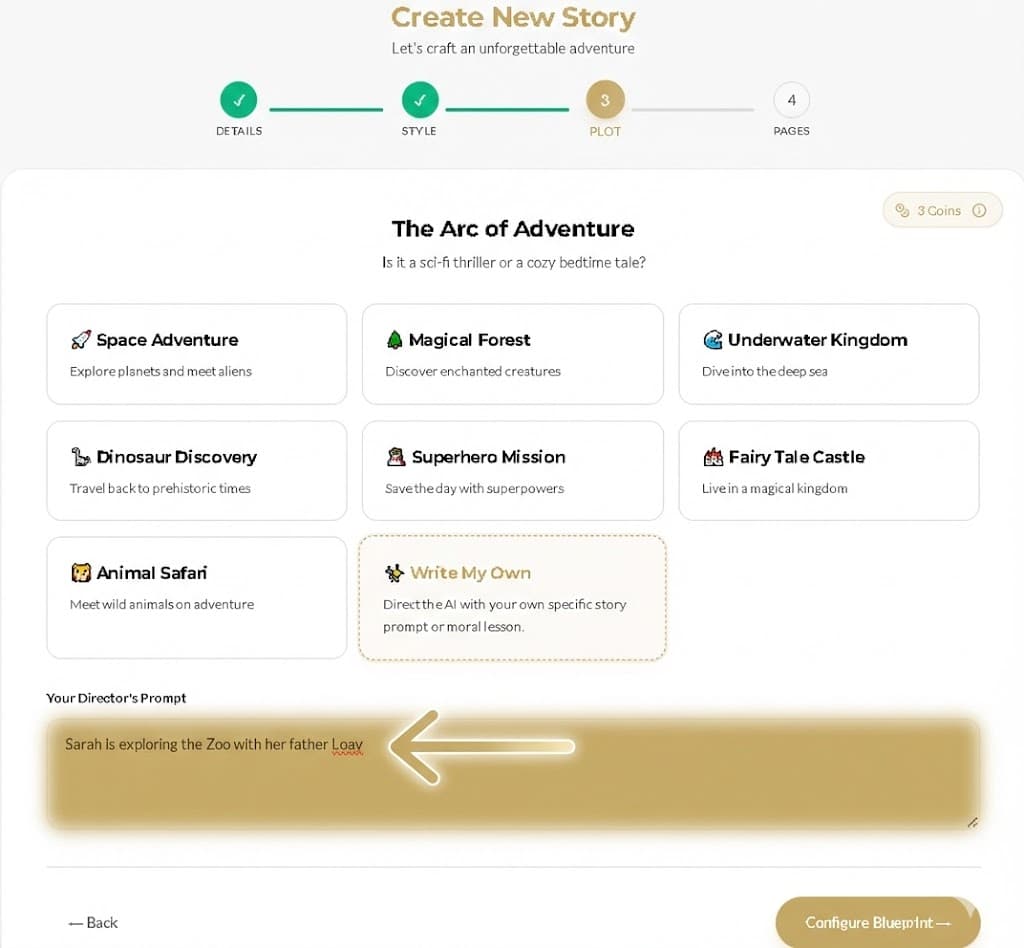
The Narrative Arc

Select a pre-built theme or write a custom prompt. If you want a story about "Maya visiting the moon," type it here. The AI builds the entire narrative around your idea.
The Narrative Arc

Step 4: Pages & Generation

Configuring the scale and initiating the magic.
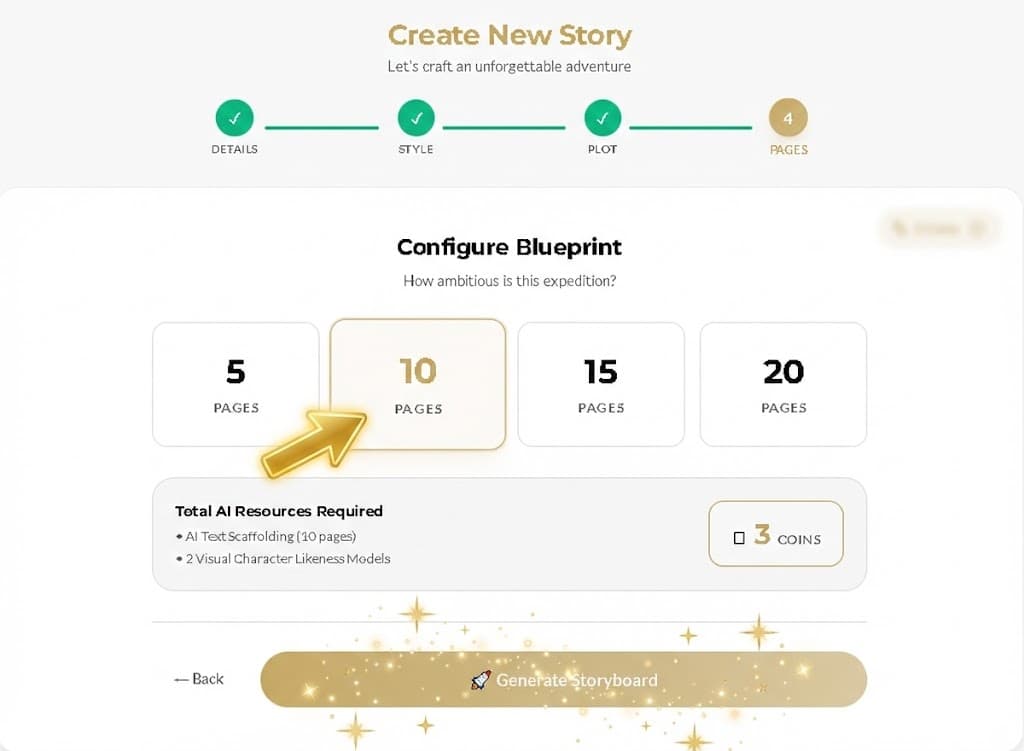
Quantity & Pricing

Pick your story scale: 5, 10, 15, or 20 pages. The coin cost is calculated dynamically based on page count and extra characters.
Quantity & Pricing

The Big Moment

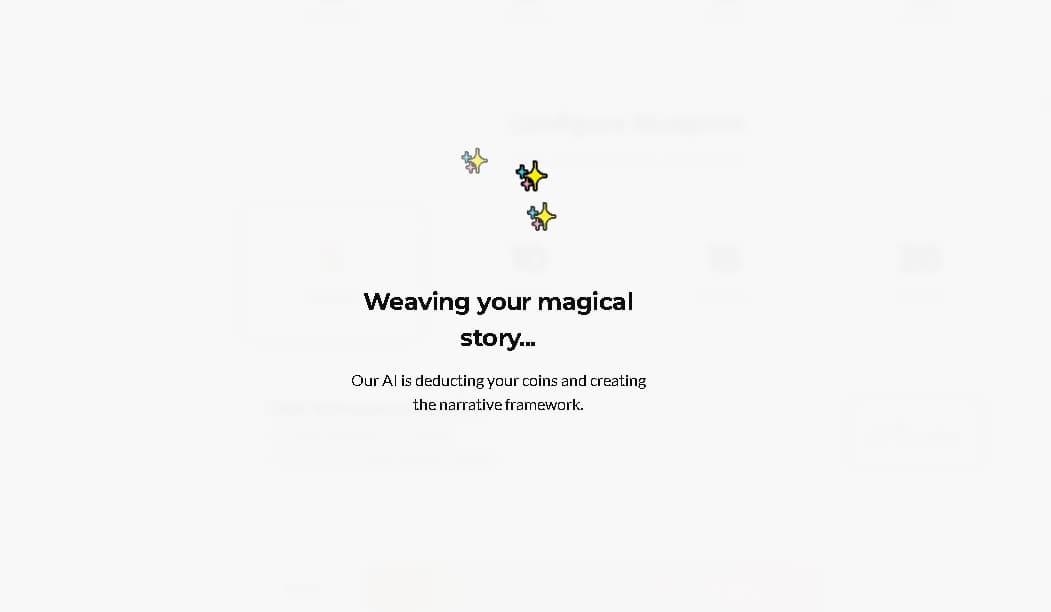
Once you click "Generate Storyboard," the Ora MagicBook Engine spends your coins to weave the entire narrative framework. Wait for the magic bar to finish, and you'll be whisked away to your personal Editor.
The Big Moment
Edit Your Story

The Editor

Where imagination meets pro-level design tools.
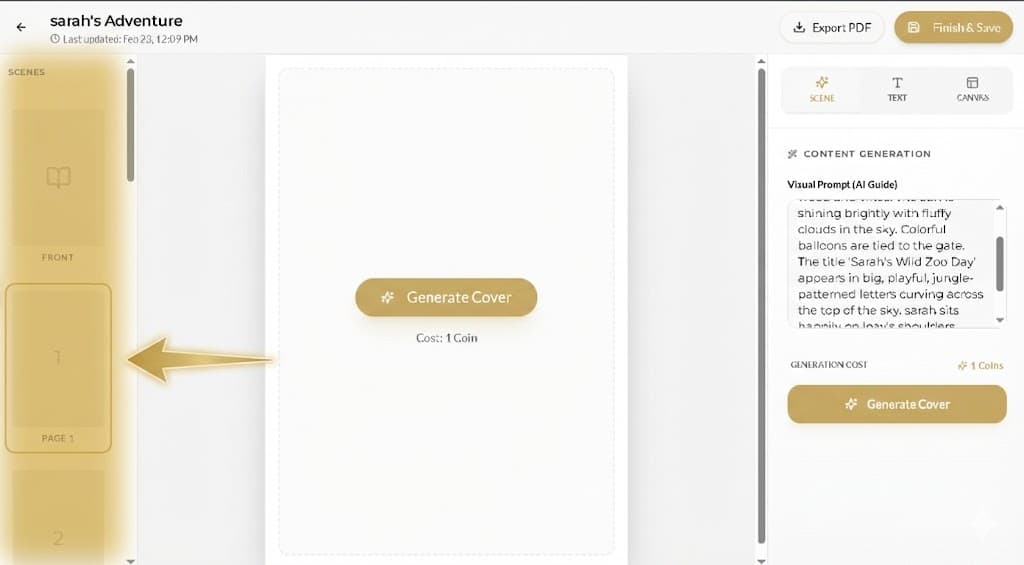
Visual Workspace

Welcome to the Ora MagicBook Editor. Your story-arc is ready in the left sidebar, while the canvas allows you to refine every page, illustration, and text block in real-time.
Visual Workspace

Step 6: The Scene Editor

Painting with AI and narrative prompts.
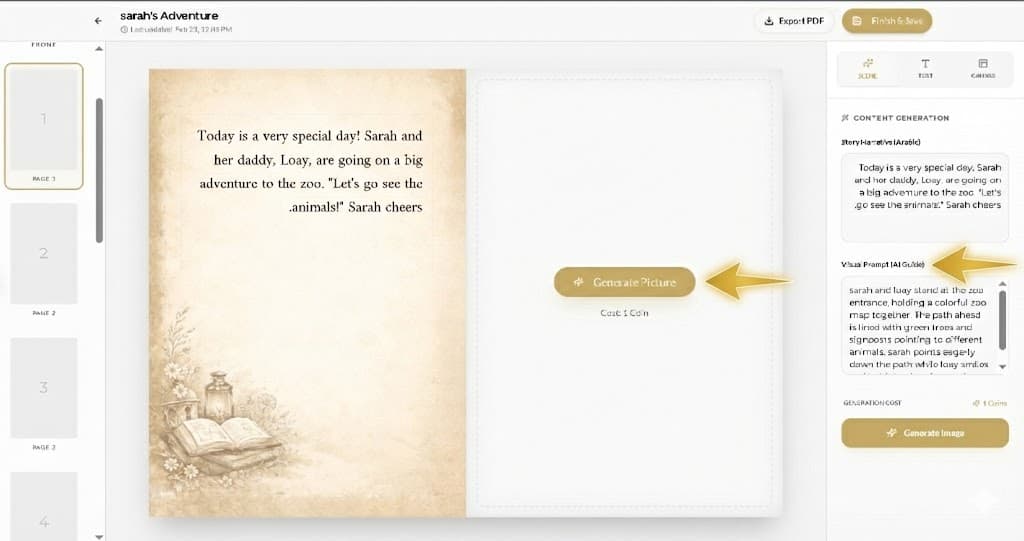
Generate Picture

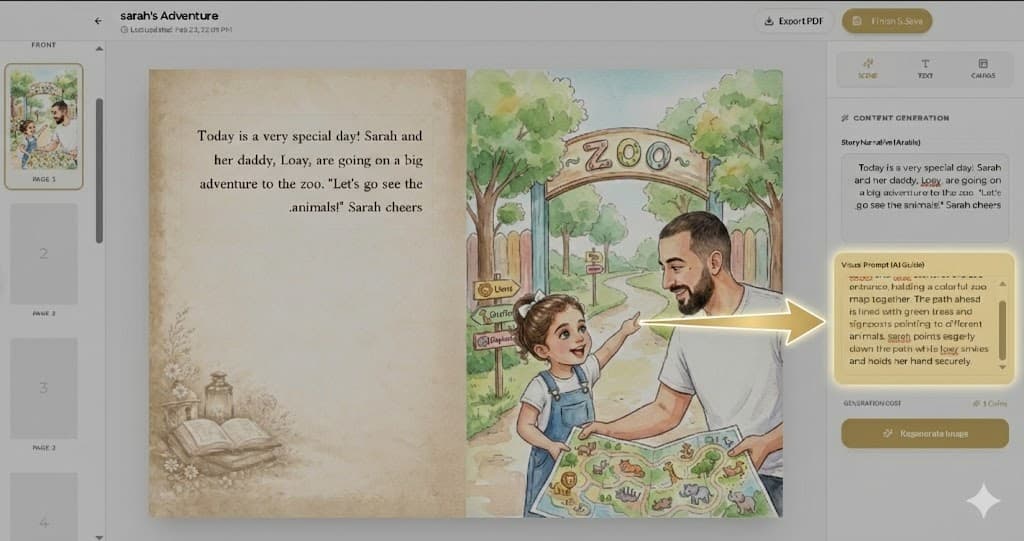
On the first tab, you'll see the "Narrative" and "Visual Prompt". Click "Generate Picture" to paint the illustration based on the AI's prompt and your character data.
Generate Picture

Visual Prompts

View and edit the specific instructions the AI is following. You can tweak the prompt to change the weather, mood, or details of any scene.
Visual Prompts

Step 7: Text & Typography

Defining the voice and style of your story.
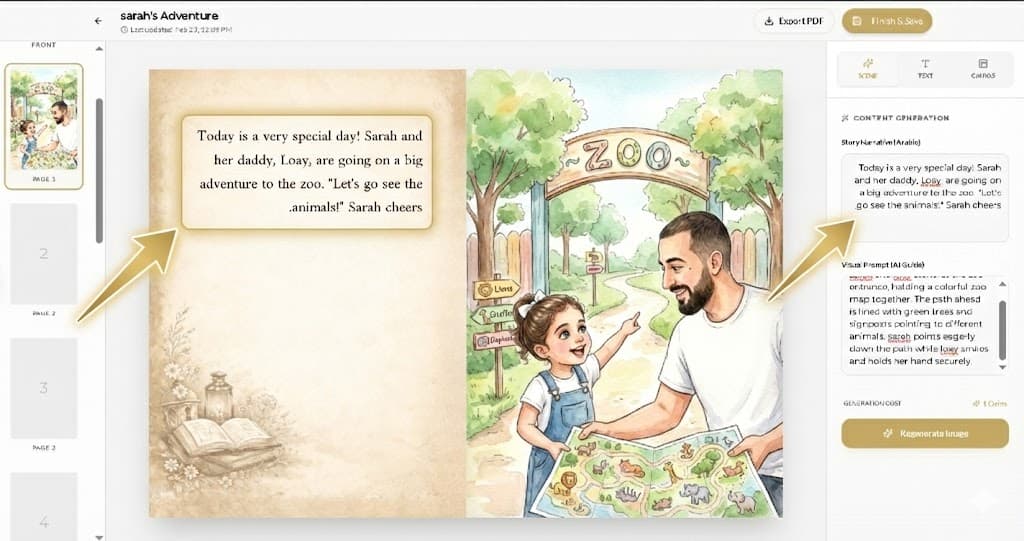
Inline Editing

Need to change a word? Edit the story narrative directly in the editor or via the text tab for instant updates on the page.
Inline Editing

Font, Color & Style

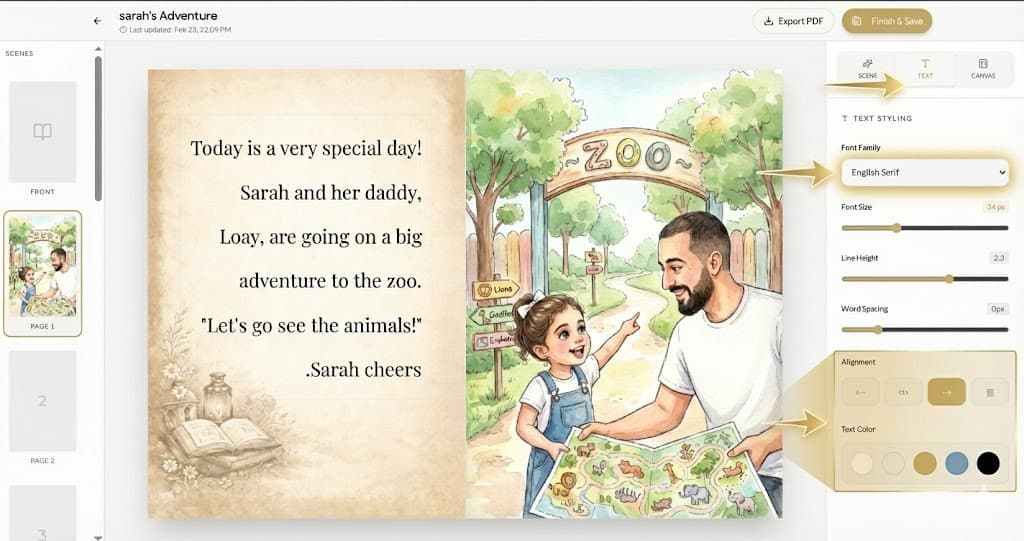
Use the Text tab to choose premium Arabic and English fonts. Adjust the size, line height, and color to make the words jump off the page.
Font, Color & Style
Pro Tip: Balancing Layout

Floating text boxes are designed to never hide the hero's face. Try vertical containers for a modern storytelling feel.

Step 8: Layout & Canvas

Pixel-perfect positioning on the page.
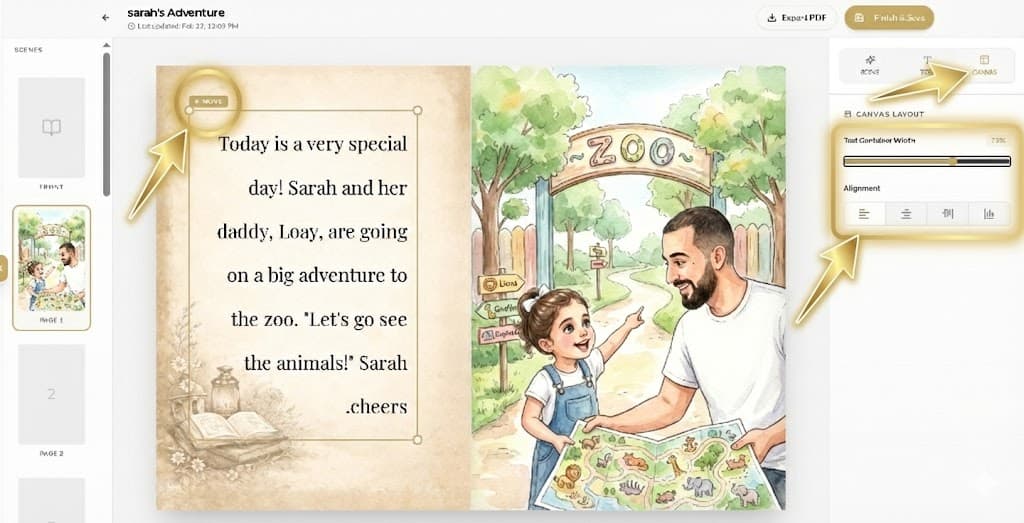
Drag & Drop

Click the "Move" handle directly on the text box to reposition it anywhere. Or use the Canvas tab for precise width and alignment controls.
Drag & Drop
Final Polish

Step 9: PDF Export

Collecting your high-resolution masterpiece.
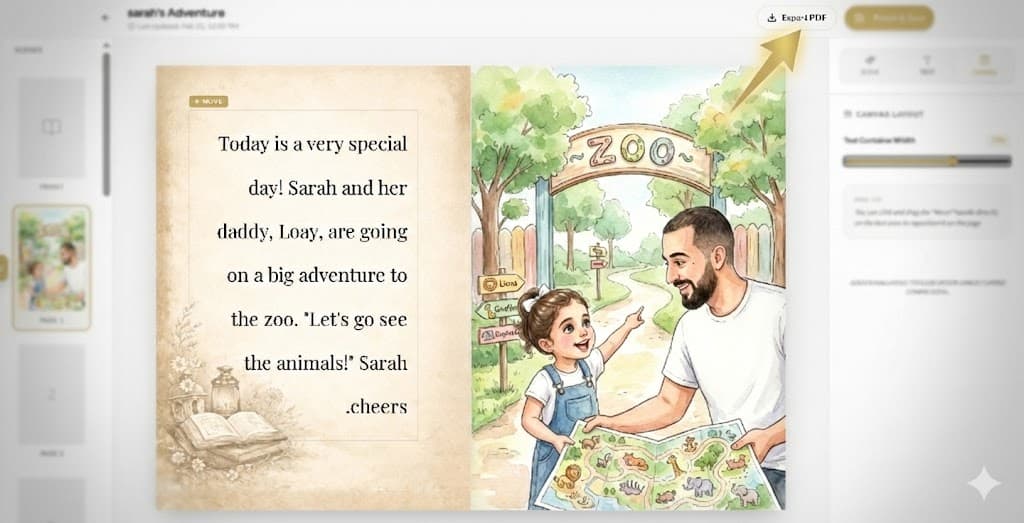
Print-Ready Collection

Export your finished story as a high-resolution PDF saved to your cloud Bookshelf.
Print-Ready Collection
Showcase

The Sarah Case Study

Witness the transformation from real-world inspiration to a finished Ora MagicBook masterpiece.

From Photo to Masterpiece

See how we transformed the original photos of Sarah and her Daddy, Loay into a consistent, high-fidelity AI adventure. The Ora MagicBook Engine preserves likeness while weaving a professional-grade narrative.

Original Sarah
Sarah
Original Loay
Dad (Loay)

"One click transformed our memories into a 20-page legacy."

Your Masterpiece
Awaits.

Crafted by AI. Curated by You. Loved by Them.